Azure · Web App
Diagnosing and Troubleshooting Issues in App Service
Azure App Service is a Platform as a Service (or Platform as a Service), i.e., there is a shared responsibility between the customer and the cloud provider, so the customer, in this case, does not have free access as you used to have in your own on-premises environment.
In this scenario, you can (and should) use the Diagnose and solve problems tool in Azure App Services, which will help you identify and resolve issues.
How to access?
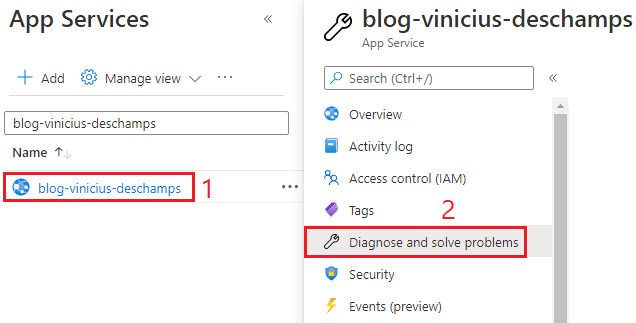
The first thing you need to do is navigate to the App Services (Web App) and choose the one you want to investigate (1) and then select Diagnose and solve problems (2)
Now, depending on the operating system your App Service is running, you may see different options
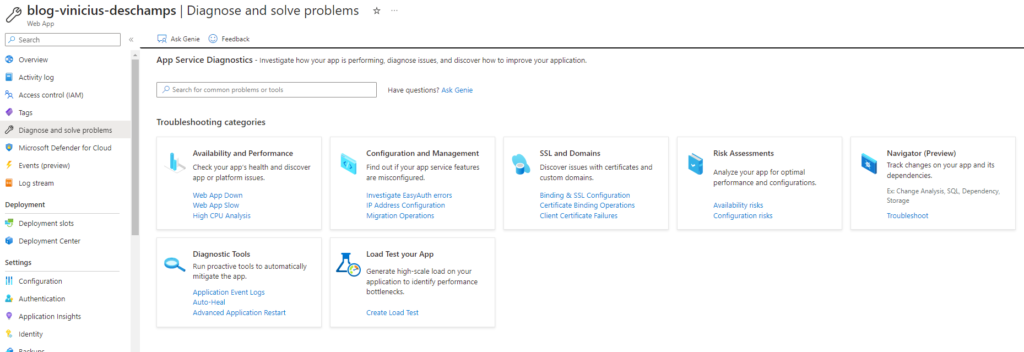
Windows App Services Dashboard
Linux App Service Dashboard
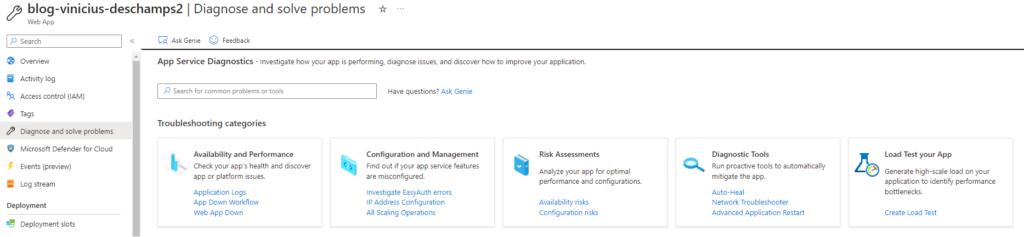
Even with different options, you will have at your disposal a set of tools suitable for troubleshooting your application.
Availability and Performance
Frequently used to determine your application's health and to help you find the cause of a transient issue, downtime, a slow app, and so on.
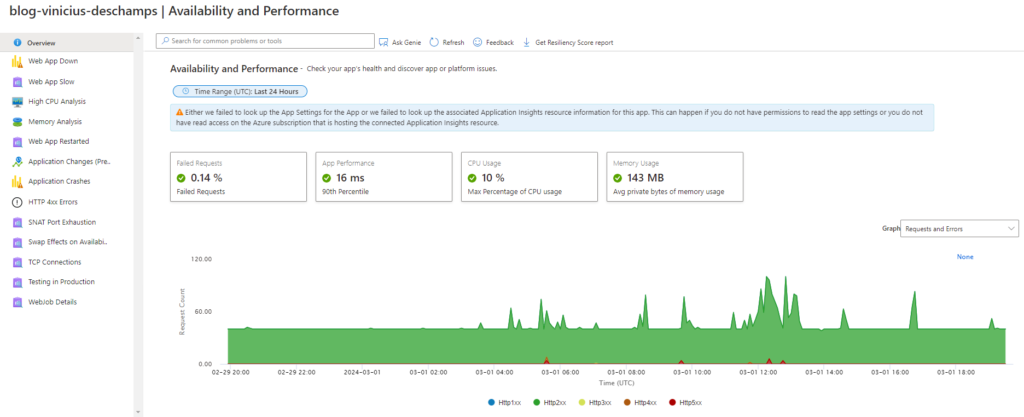
Among the various options you can, for example, if your app went down, by clicking on Web App Down, review in detail what may have occurred when the Availability of the App or Platform dropped in the chart
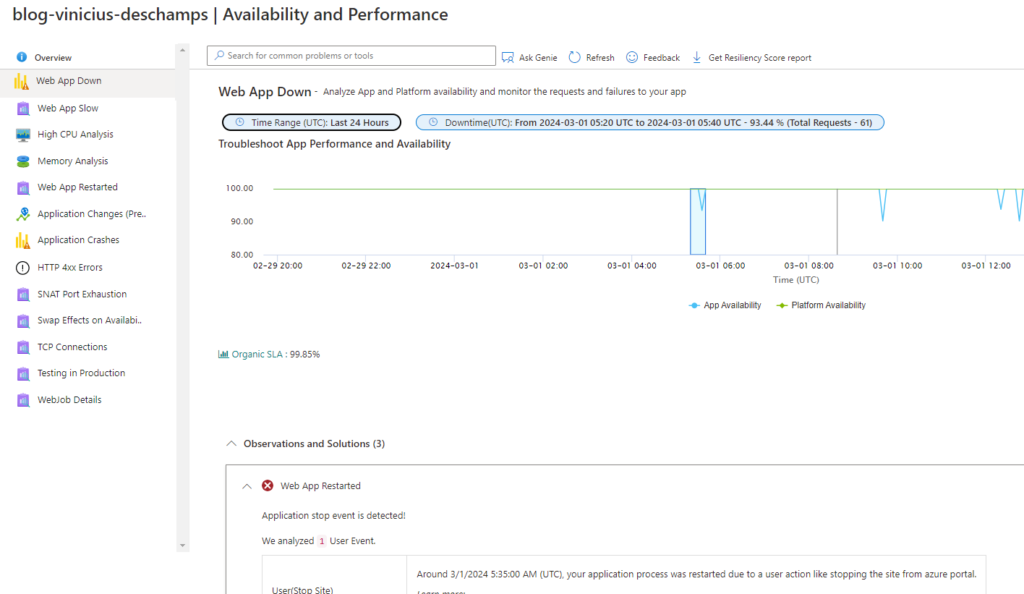
In addition, you can check the reasons why the application or the platform were unavailable
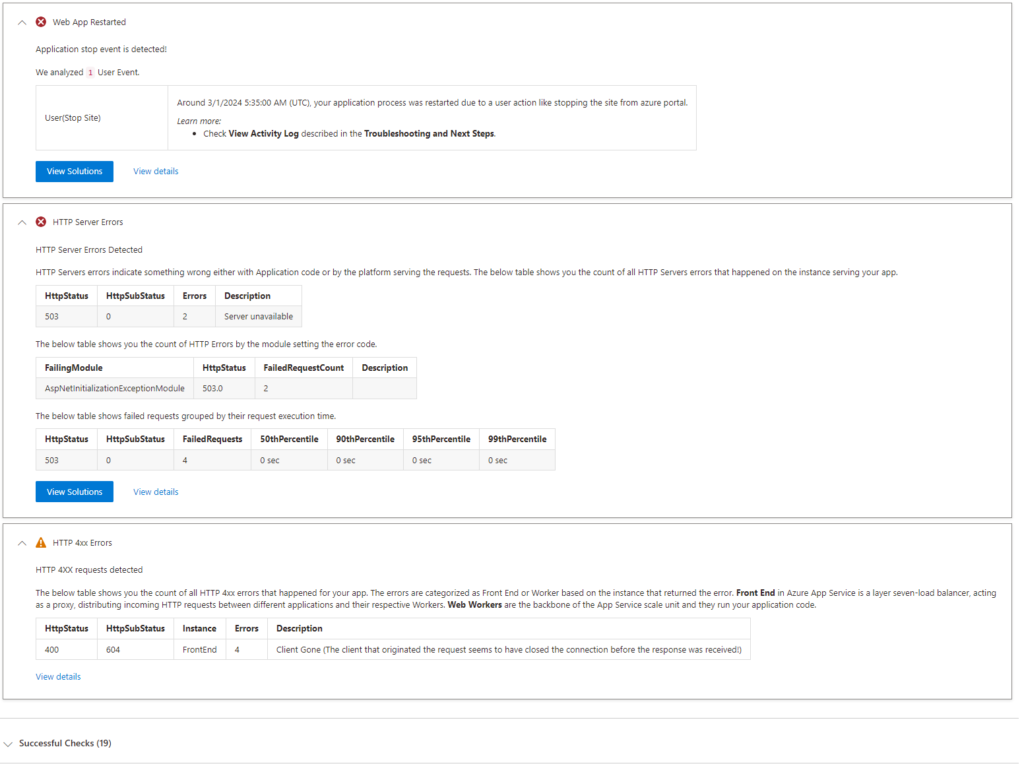
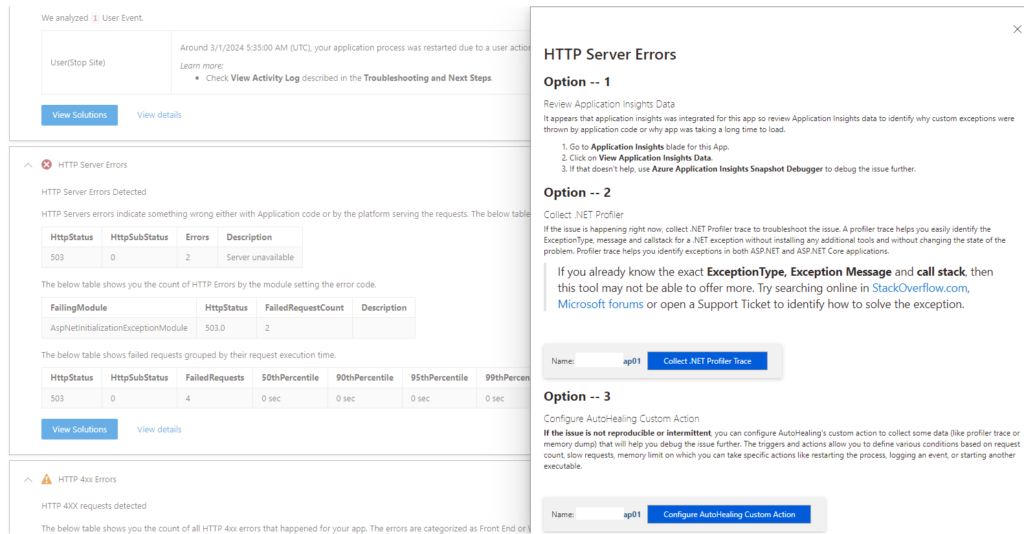
And when you click on View Solutions, Azure itself presents more steps to perform a verification and try to find the problem
Another new feature (since 2022, in fact) is the ability to download a Resiliency Score Report, by clicking Get Resiliency Score Report, where you will download a PDF that provides recommendations for best practices for your application
Configuration and Management
Here you can determine whether App Service resources are configured correctly, issues with backups, scaling operations or swap that occurred, and more
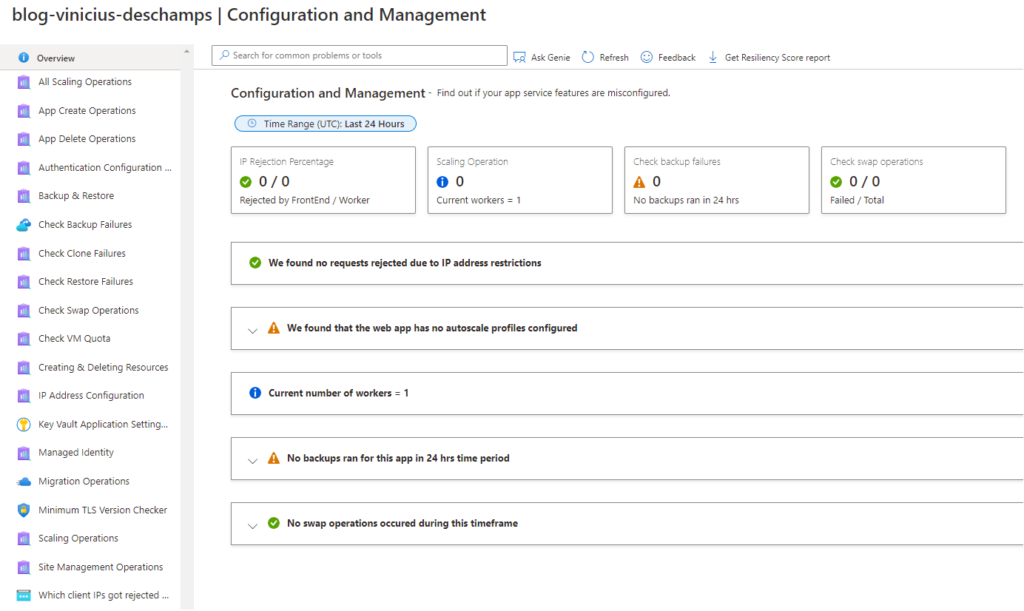
By clicking Check Backup Failures you can verify if any backup failed; in my case, no backups were executed in the last 24 hours, so I need to check what is happening
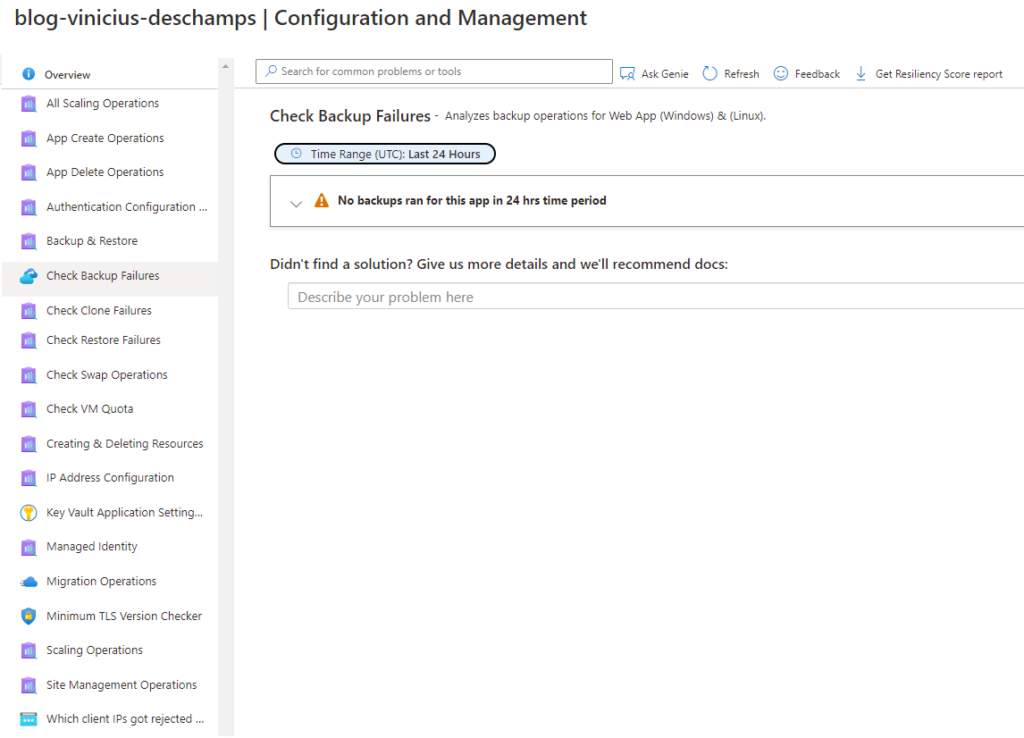
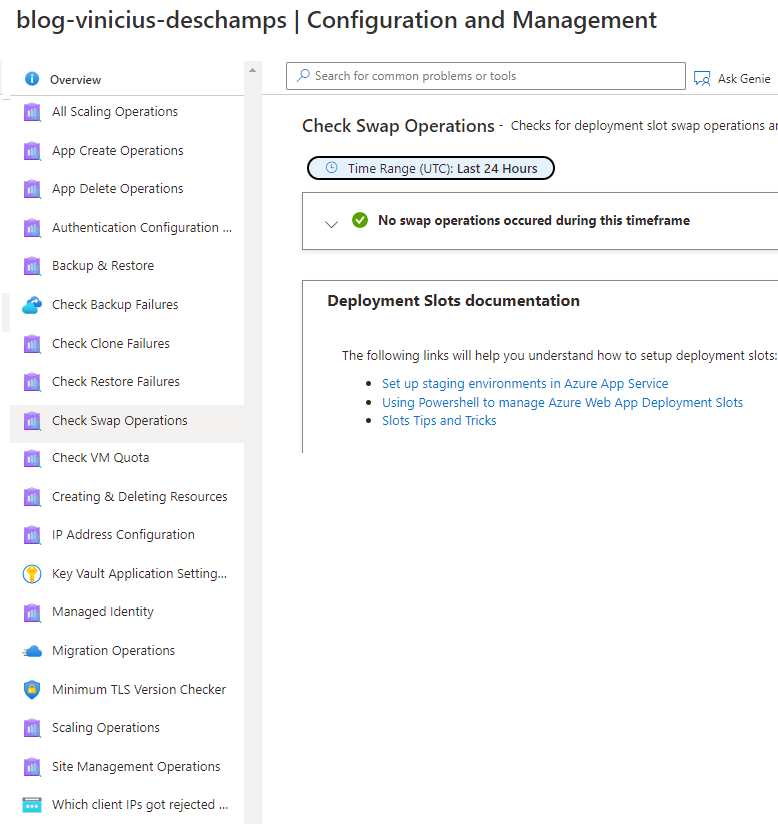
I can also check whether there was any Slot Swap operation
SSL and Domains
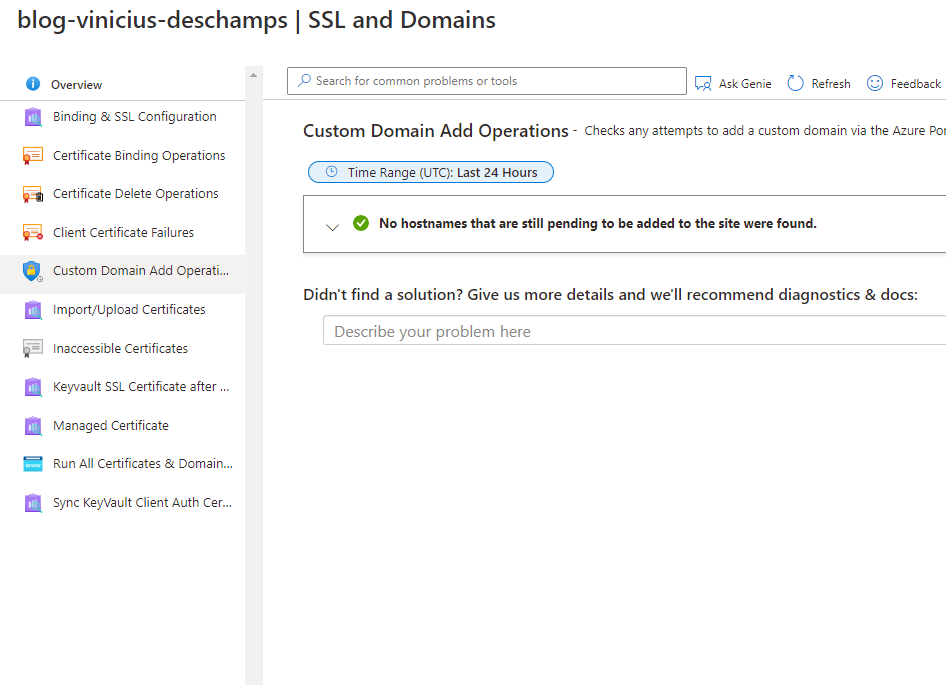
You can try to diagnose issues with certificates and custom domains, so you have several options to aid investigation in this area
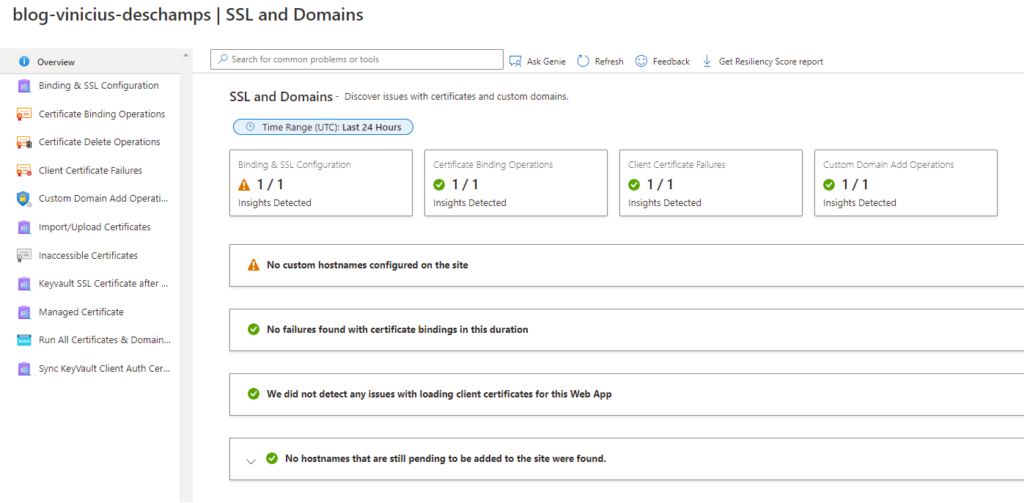
It is possible to verify if any new operation to add custom domains in App Service was performed
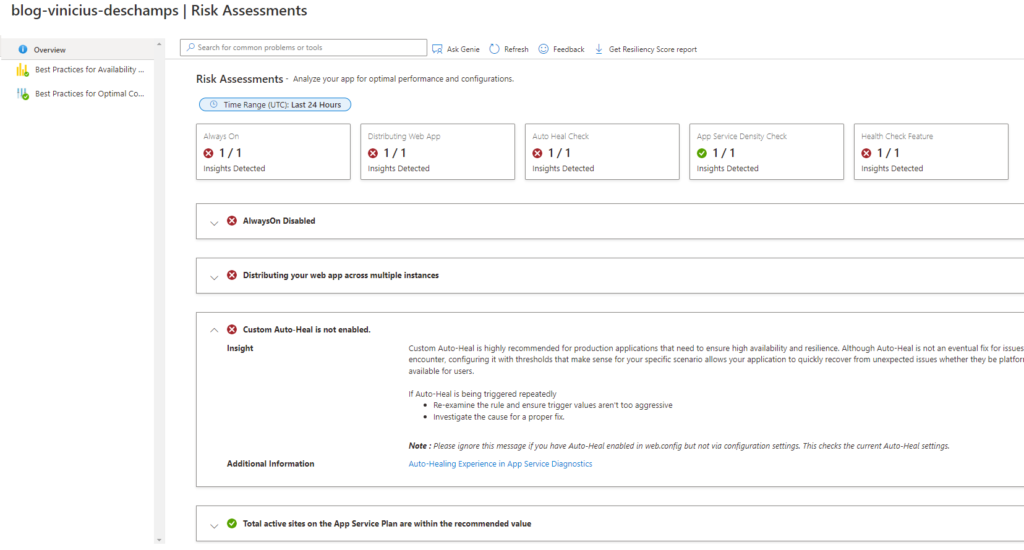
Risk Assessments
Not being sure if your application is properly sized, you can assess performance and configuration ideas; you can always rely on Risk Assessments to evaluate it by running Best Practices for Availability & Performance and Best Practices for Optimal Configuration
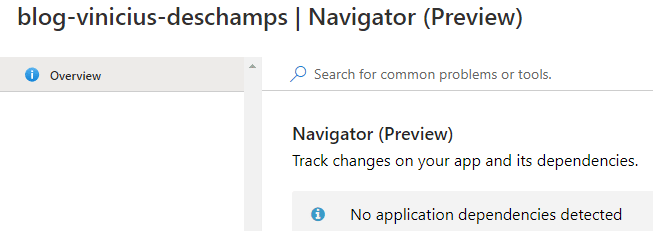
Navigator (Preview)
The Navigator provides a centralized view of an application and its dependencies, along with changes over time such as Change Analysis, SQL, Dependency.
Navigator is available only for Windows applications

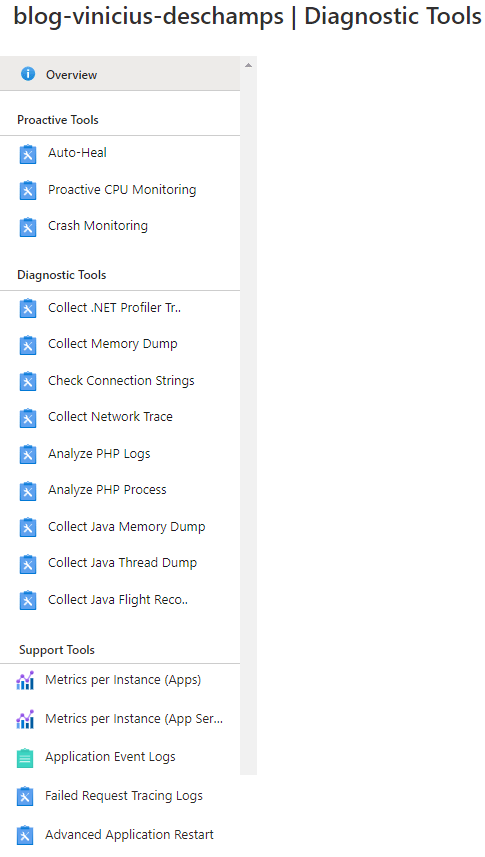
Diagnostic Tools
Do you need or are you just interested in an in-depth analysis of a topic? Diagnostic Tools is your place.
There are three main areas: Proactive Tools, Diagnostic Tools and Support Tools
- Proactive Tools
- Tools that operate proactively to take action if your application behaves unexpectedly
- With Auto-Heal you can configure an action if your application behaves unexpectedly
- Proactive CPU monitoring allows you to configure an action as well, but in this case when your app is CPU-intensive
- Crash monitoring is used when your app is having persistent issues and you need to collect memory dumps to try to identify the cause
- Tools that operate proactively to take action if your application behaves unexpectedly
- Diagnostic Tools
- When you need to perform a deeper analysis of the running application, to collect memory dumps, profile trace, network trace and determine the root cause of your application
- Support Tools
- As the name suggests, support tools that will help provide metrics and logs to aid in problem identification
And last but not least
Load Test for your application
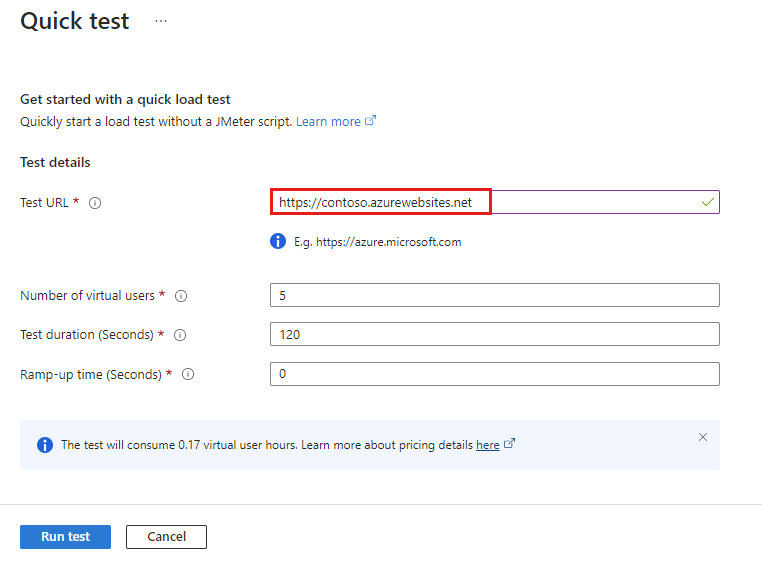
Now it is possible to run load tests on your App Service using the Load Test tool