
Azure · Database · Migração · SQL
Migration of resources between Subscriptions – Azure SQL Database
I was participating in a project that would perform the migration of several resources from one Subscription to another, in the same Tenant.
I even wrote an article about the Migration of resources between Subscriptions – CosmosDB for PostgreSQL Cluster, where I could not complete the migration with the Azure Resource Mover so that the process would be fast and simple.
But this time, the idea is to use the Azure Resource Mover, as according to Microsoft, it is possible to migrate Azure SQL Database between Subscriptions.
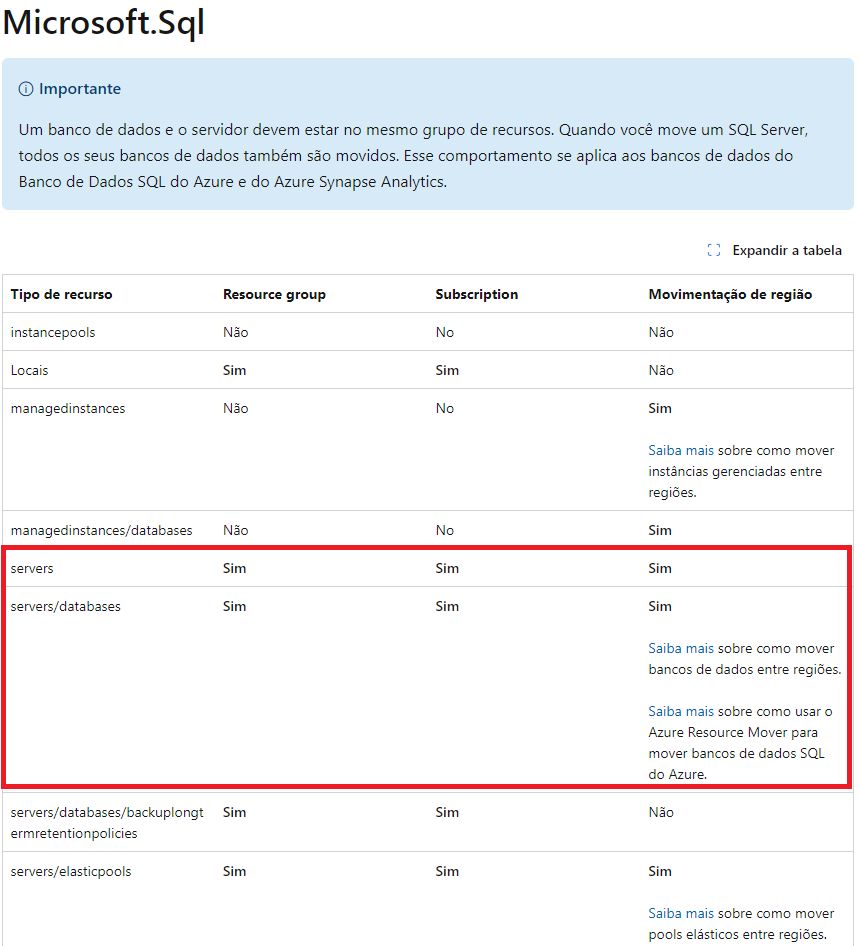
Move Azure SQL Database to another Subscription
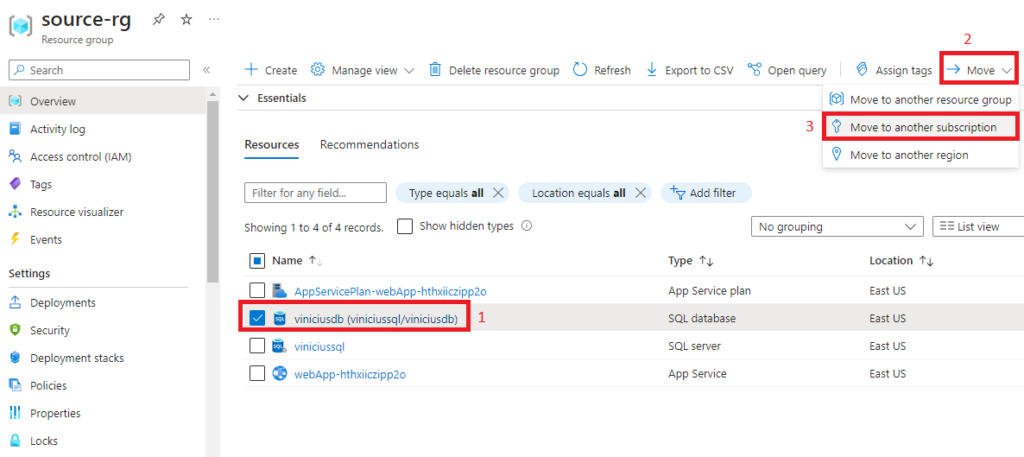
Assuming you already have the two Subscriptions, let's access the Azure Portal in the Subscription that will be the source, go to the Resource Group where the Azure SQL Database is located.
Next, select the Database you want to move, then click on Move and choose
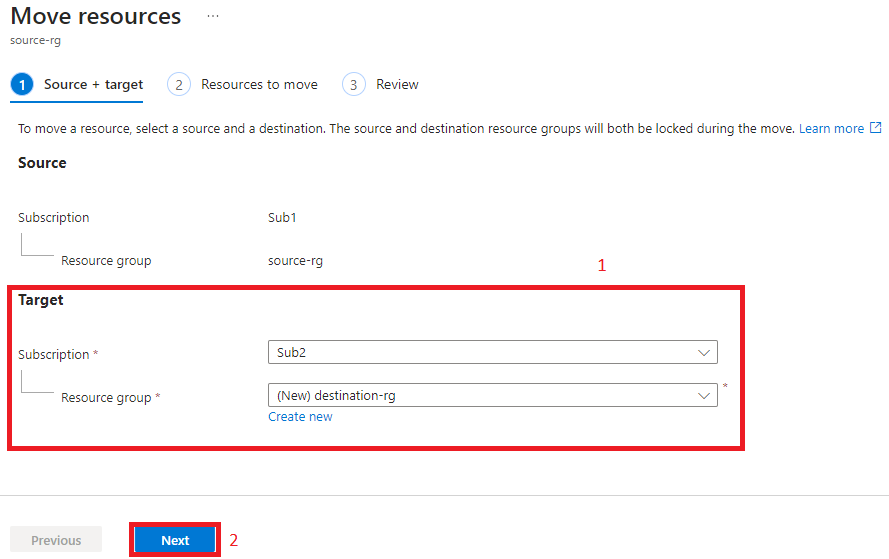
In the first step, choose the Subscription and the Resource Group that will serve as the destination for the Database you want to move, then press Next
And on the next screen, you will encounter an error (or perhaps just when you click Next to perform the validation) informing
Para mover esses recursos, você também precisa mover os recursos pai. Encontre-os na coluna Tipo de recurso (Microsoft.Web/sites é o pai de Microsoft.Web/sites/config).
To move these resources, you also need to move their parent resources. Find them in the Resource Type column (Microsoft.Web/sites is the parent of Microsoft.Web/sites/config).
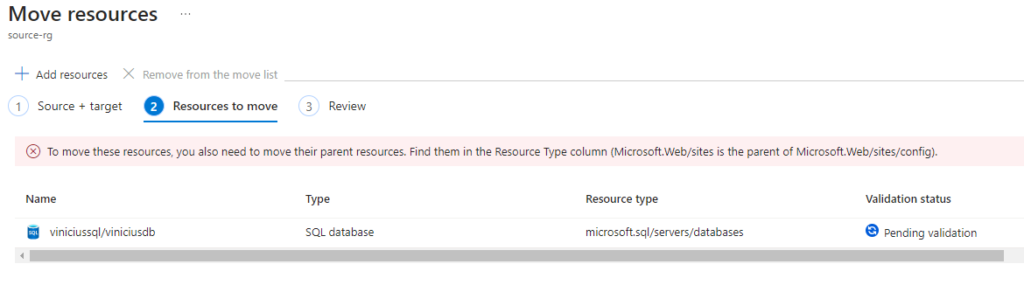
The error informs us that we need to move the parent resources along with the selected resource; in this case, Databases are of the type microsoft.sql/servers/databases, so the parent resource would be microsoft.sql/servers, i.e., the Azure SQL Server.
Therefore, the prerequisite to migrate an Azure SQL Database is also to bring the Azure SQL Server along.
Let's add more resources, going to Add resources
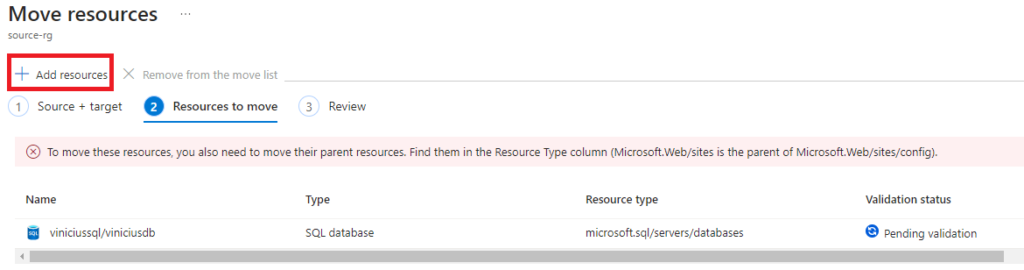
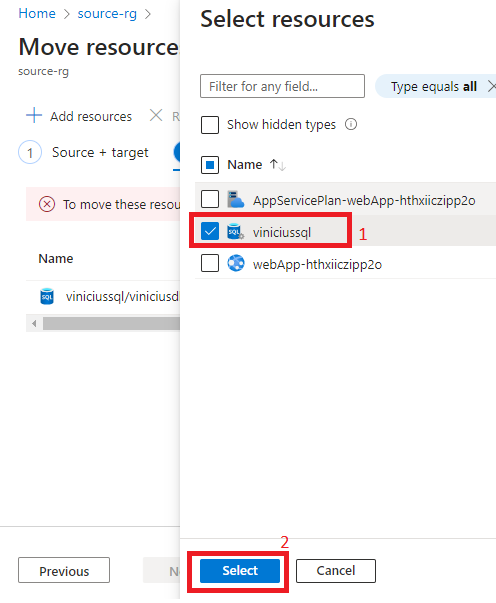
Search for and select the Azure SQL Server, and click Select
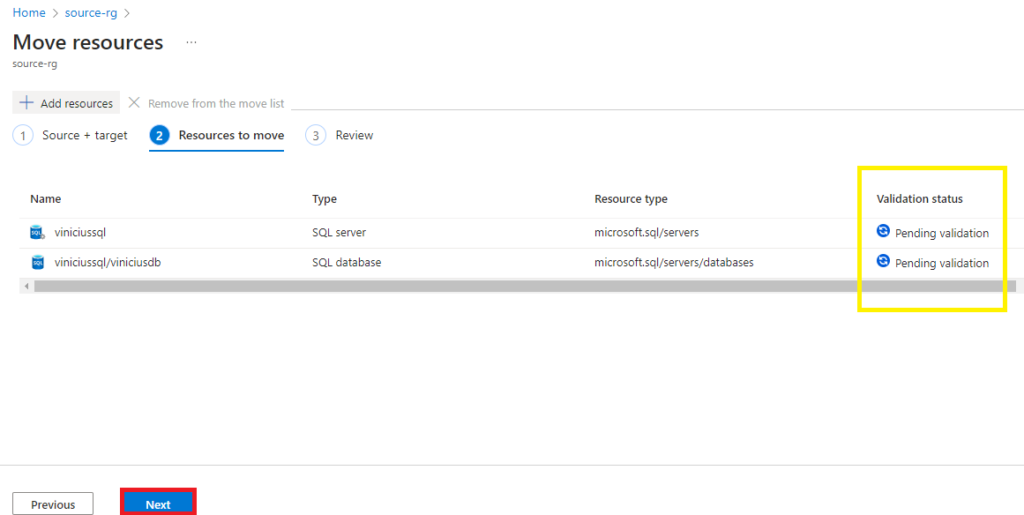
Now, we no longer have the error and the status is Pending validation, so we click Next to perform the validation
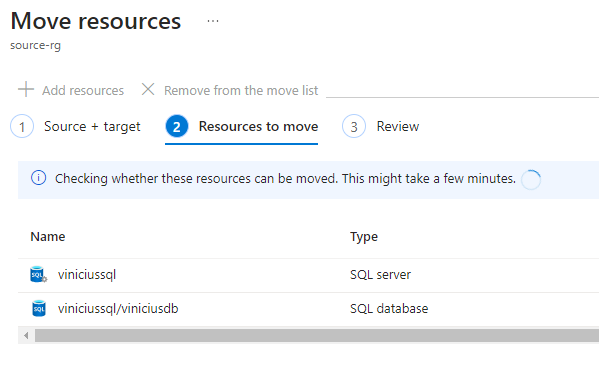
The validation will run and take a few minutes
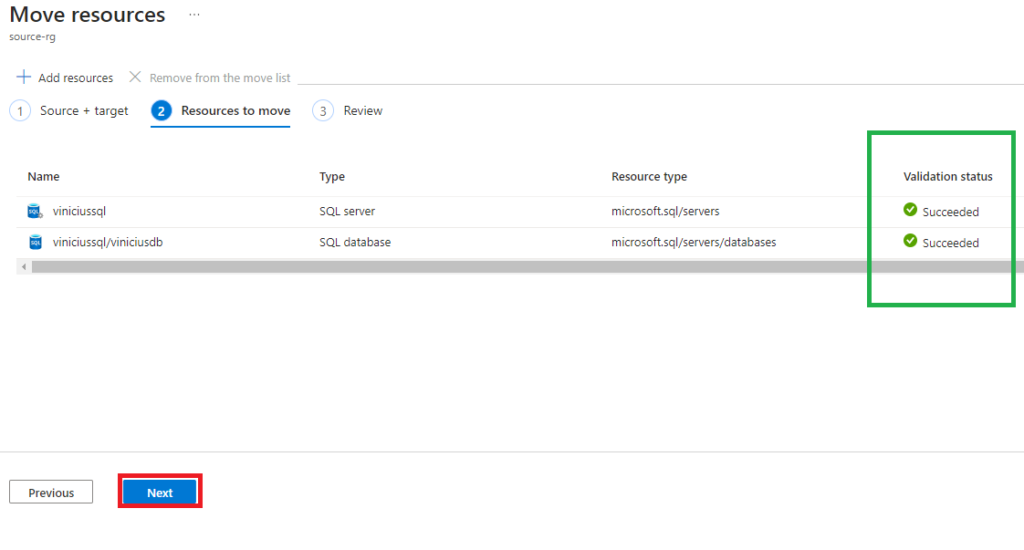
If the validation finds any new issue, you will receive a on-screen notification; in this case the problems were resolved, our validation passed, so let’s click Next
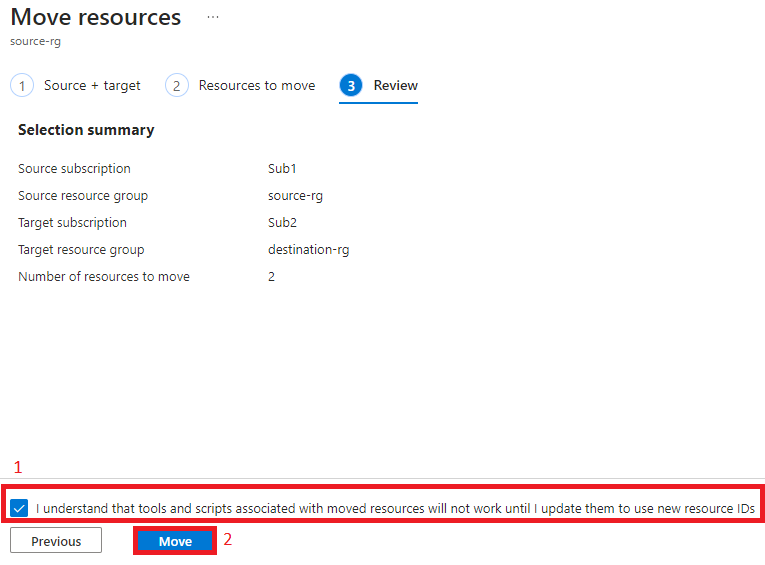
And finally, a summary of the action to be performed; just check the checkbox saying that you understand that any script or tool associated with the resources to be moved will not work until you use the new resource IDs and then Move
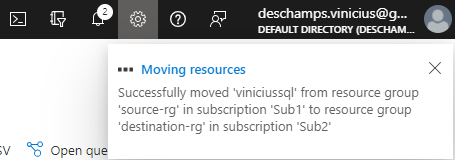
Then, a notification will appear in the upper-right corner of your Azure Portal, indicating that the migration has started
Remember that during the migration, the resources are unavailable, i.e., there is a downtime for the resources. Besides this, the migration time may vary depending on the number of resources being migrated.

After a few minutes I received the message that the resources had been migrated, so let’s check
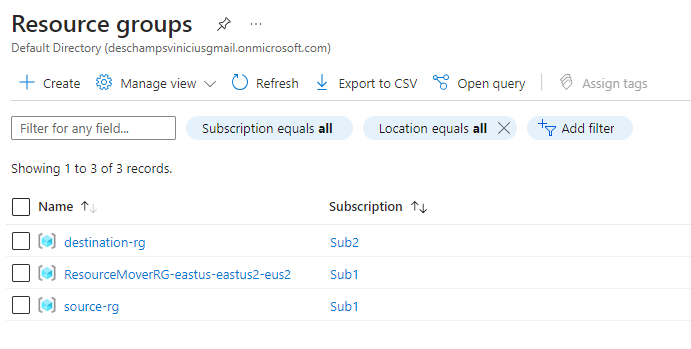
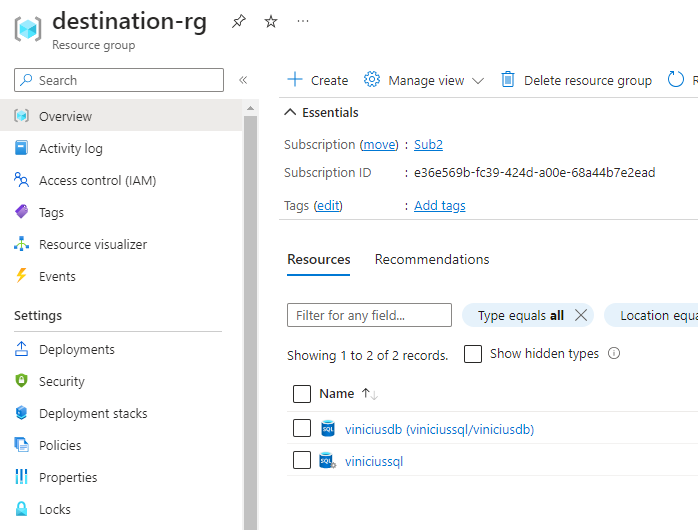
And going to the destination-rg, we can see both the Azure SQL Server and the Database
Sources: