Azure · Dev Box
Grant access to a project in Dev Box
As you may have seen in my article about what is Dev Box, Dev Box is a pre-configured computer created through a self-service portal, which provides autonomy to your team of developers and accelerates the integration process to projects.
Once the environment for the Dev Box is created inside Azure, you need to grant access to the developer(s) so they can create their own Dev Boxes with the configurations for a given project.
Access Control (IAM)
There are two roles that will grant access to create the Dev Box through https://devportal.microsoft.com
-
- View pools in a project.
- Create development machines.
- Connect to a development machine.
- Manage development machines that were created.
- Delete development machines that were created.
-
- Display the network connections attached to the development center.
- Display the development machine definitions attached to the development center.
- Create, view, update, and delete development box pools in the project.
How to grant access to the devportal (Az CLI)
# Capture the Object Id of the user I want to grant permission to
$userId = az ad user show --id "[email protected]" --query "id" --output tsv

# Capture the Resource ID of the Project I want to grant permission for
$projectId = az devcenter admin project show --name [project-name] --resource-group [Resource-Group] --query id

# Grant the permission
az role assignment create --assignee $userId --role "DevCenter Dev Box User" --scope $projectId
When running the command to capture the projectId, you may be prompted to install the module to interact with the Dev Center using the az cli

And executing via az cli, it would look like this
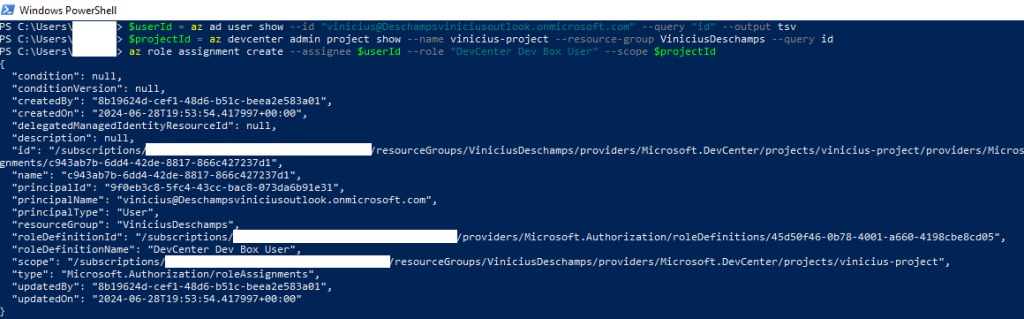
If you execute via command line, you do not need to follow the steps in the Azure Portal below
How to grant access to the devportal (Azure Portal)
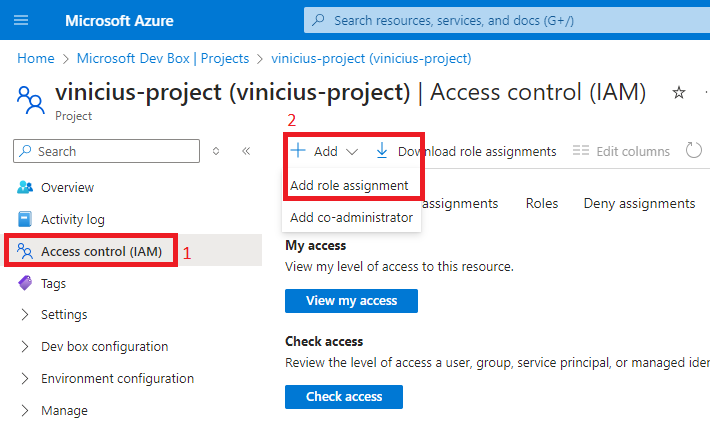
Go to the Project, Access control (IAM), Add and then Add role assignment
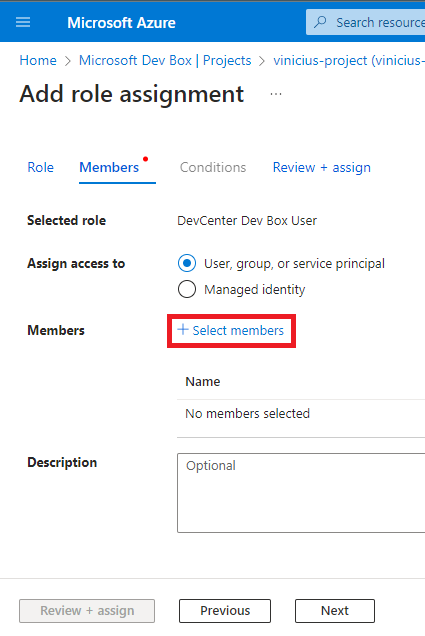
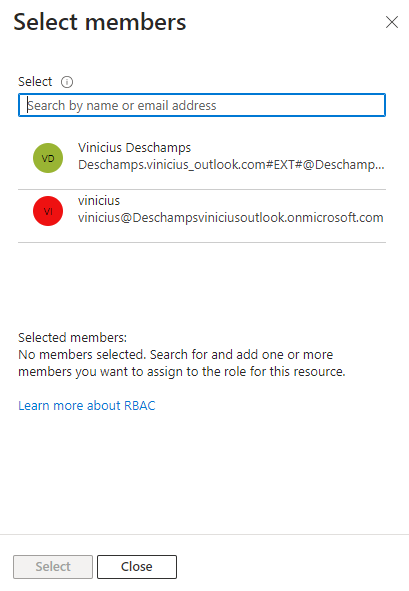
Then, when selecting Members click on Select members
Select the user you want to grant access to
Note that the use of Dev Box is compatible with corporate and student accounts, meaning accounts @…onmicrosoft.com (or your own domain linked to the onmicrosoft.com), for example the first user in the image below would not be able to, as they are classified as an external user!
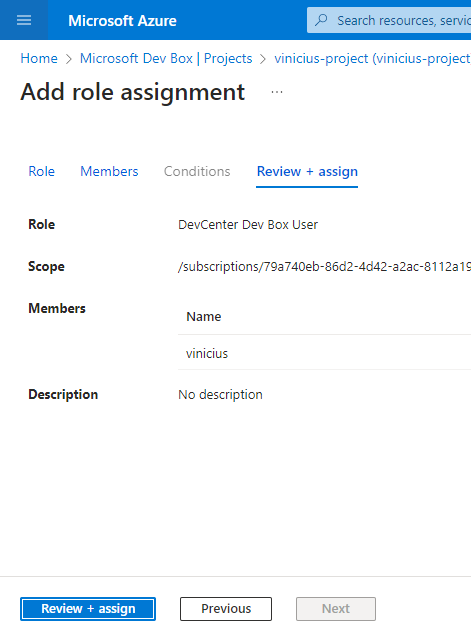
And go to Review + Assign to finalize the privileges grant
Verify access in the Dev Portal
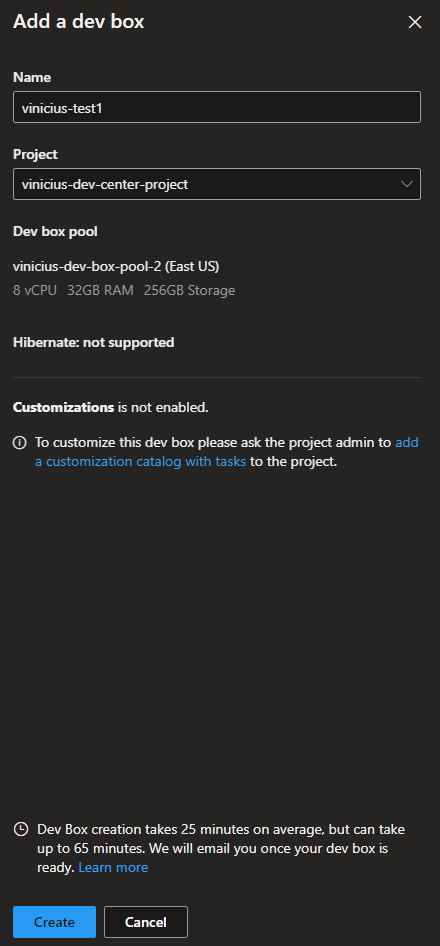
And after granting these permissions, you will be able to access to create your Dev Box
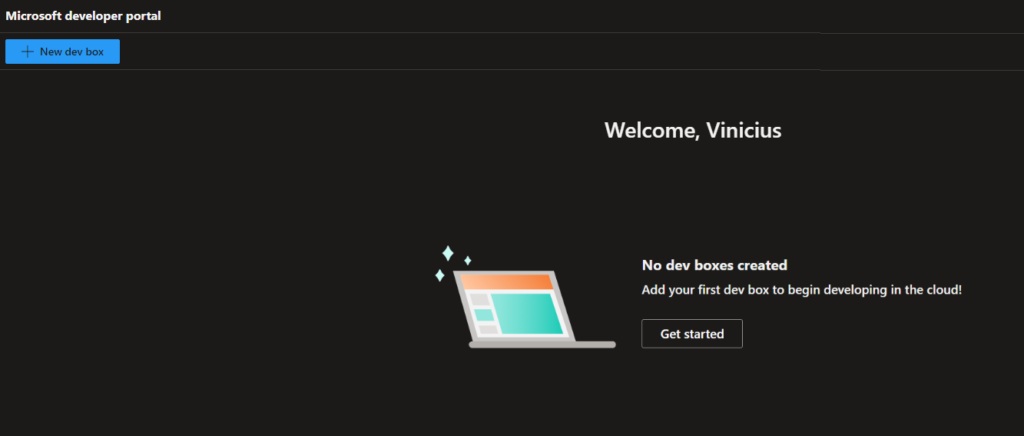
Otherwise, you would see the following message