
Sitecore
Sitecore – SOLR is NOT starting trick #2
In today’s post, I’ll show another tricky way to get the Solr service started, which saved a couple of hours for reinstalling it.
The story is pretty similar to my last post where I have a Sitecore instance set to use Solr which was up and running, but Solr Server restarted caused by a general failure in the operating system. Well, after that Solr wasn’t starting anymore.
Facing the issue
My environment has Bitnami Solr installed, and the server restarted but once it was back up Solr didn’t work.
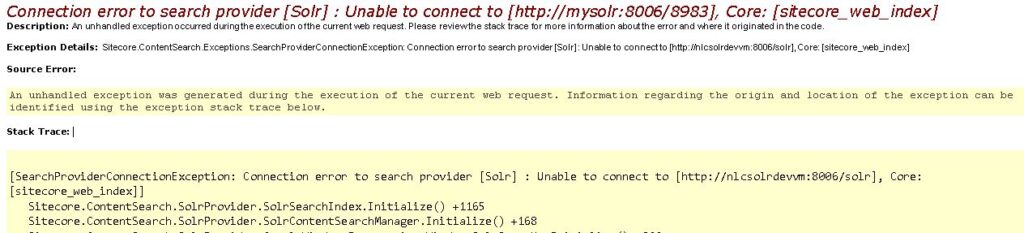
- After the Solr server restarted, Sitecore was throwing the following error
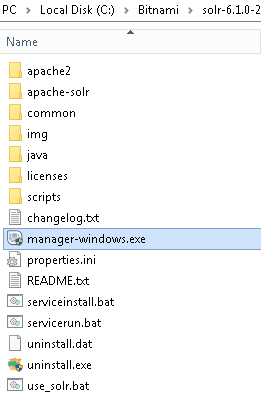
- Go to the Solr server, navigate to the Solr installation folder, and launch manager-windows.exe
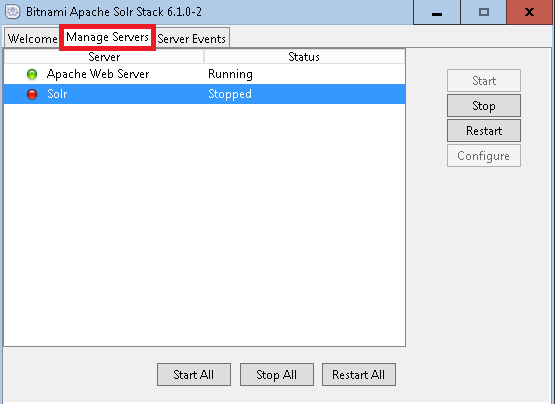
- Go to Manage Servers tab, and notice Solr is Stopped
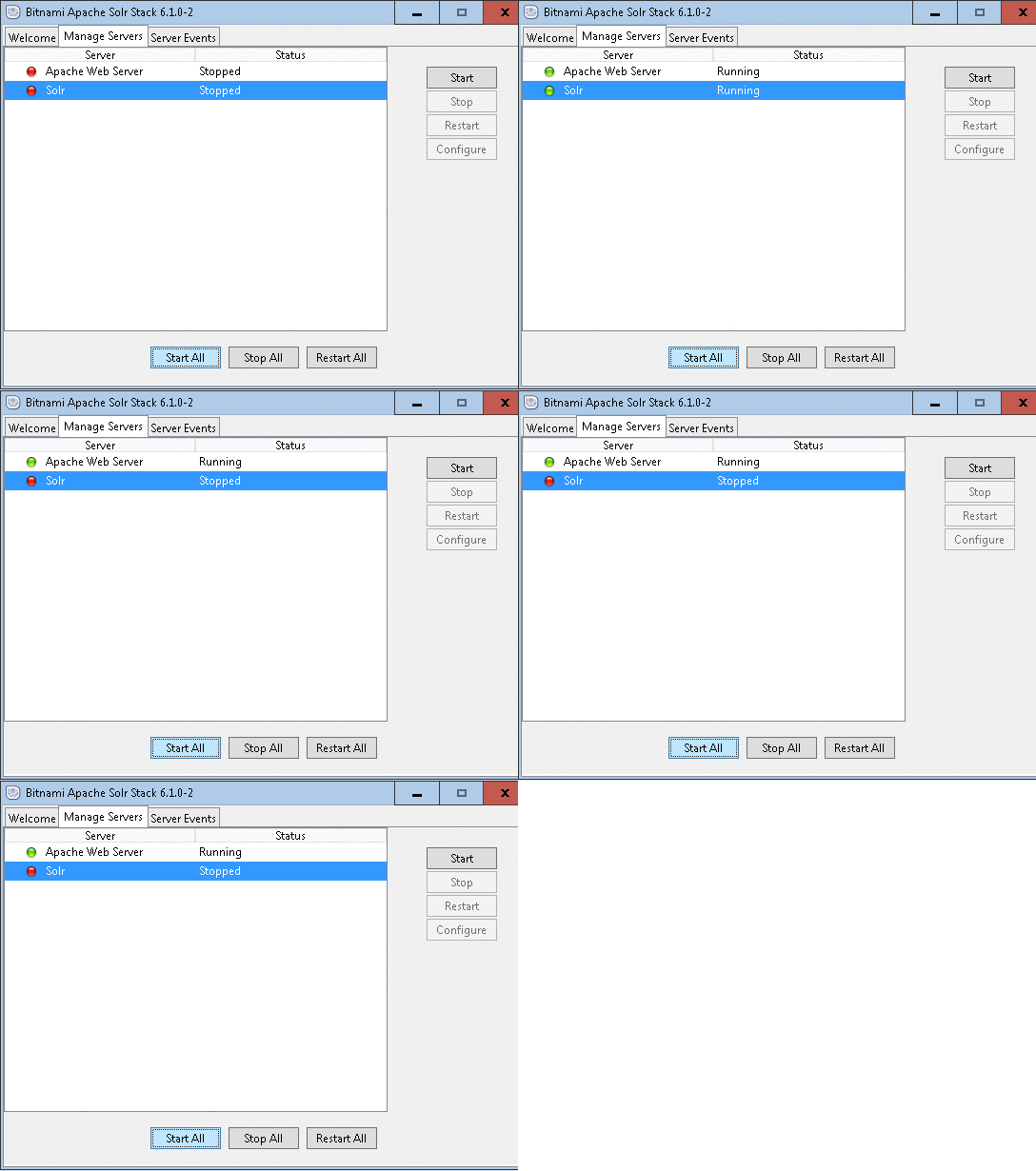
- I tried Restart All, but no luck – Solr service came back up and then hung
- Repeat the steps from my old post, and again NO LUCK!
After a deep troubleshoot, I figured it out. And here are the steps you can follow to address this issue.
Overcoming the issue
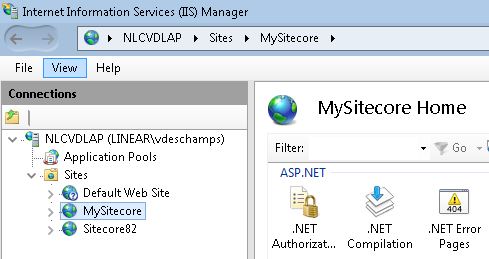
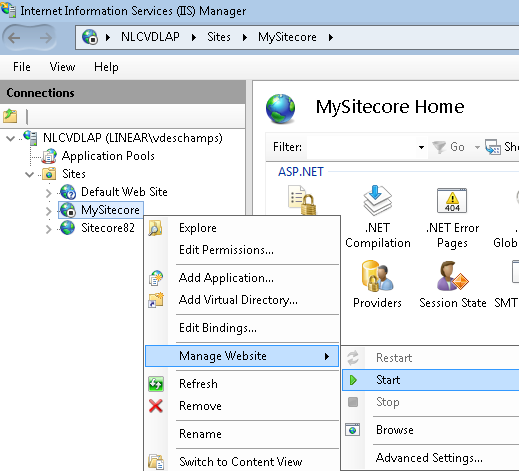
- Open Internet Information Services, find the Sitecore instance which has the Solr configuration set
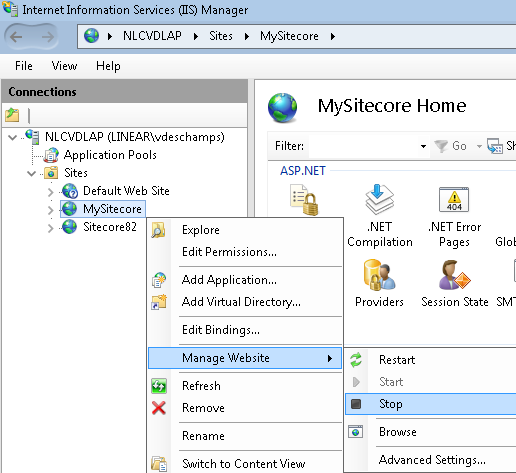
- Right-click on the Sitecore instance, Manage Website and Stop
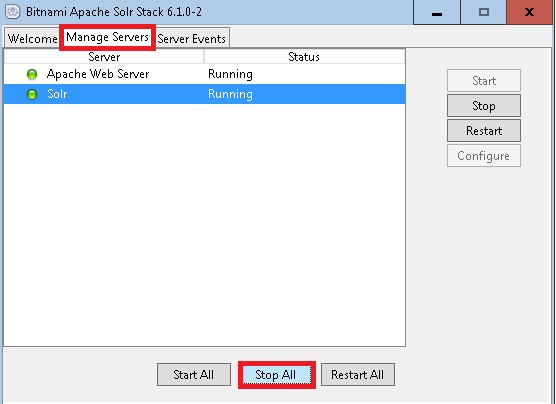
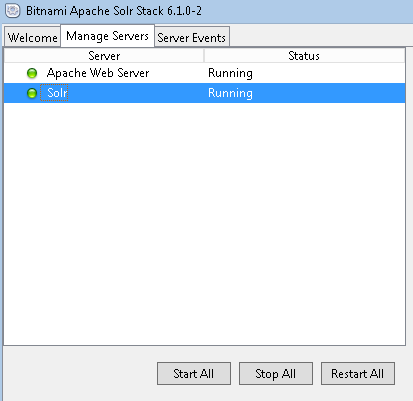
Connect to the Solr server, navigate to the installation folder, and open manager-windows.exe
Go to the Manage Servers tab, then click Stop All
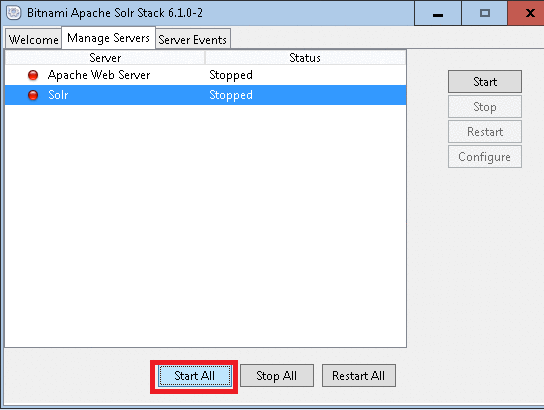
- Once both show as Stopped, then click Start All
- Wait for a while, and notice both services are Running and Solr didn’t hang
- Back to the IIS, right-click on the Sitecore instance and Start it again
And let’s test it…. browse to your Sitecore instance

voilà! Sitecore and Solr are now back up!
Thanks for reading, and I hope you liked it!
I’ll see you on my next post!