
Sitecore
Sitecore – Strengthening Security
In the previous post, I walked you through every step so you could add the license.xml file to the Data folder based on the Sitecore recommendations, which means placing the /Data folder at the same level as the main /Website folder.
That said, what you didn’t realize in my last post, even though it was a smooth path, is that by following Sitecore’s documentation you were actually strengthening the security of your installation!
“Wow, are you serious?” Yes, you can bet on it! So, if you don’t know exactly what I’m talking about, I recommend you read my post about Sitecore Installation – tips and tricks #2.
Very well, ladies and gentlemen, moving on… Well, as you may know there is a term called hardening which reduces the attack surface by disabling features that are not necessary to maintain the minimum functionality.
“Wait a minute! Are you saying my Sitecore installation will run with minimum capacity to increase security?” No, not at all!
Think of it as a gate at your home — would you leave it open all day? Of course not, someone could just walk in. So the idea behind hardening aligns with what I mentioned above: if you give control to open the gate only to authorized people and keep it closed, the gate isn’t operating at its minimum capacity? Not at all! By giving control to some people, you created an “Access Control” and, in other words, you strengthened the gate’s security!!! (THIS!)
Now, back to work 🙂
“Sitecore recommends that you follow all the instructions to harden security described in Sitecore’s documentation.”
In today’s post, I’ll guide you on denying anonymous access to important Sitecore folders, namely:
- /App_Config
- /sitecore/admin
- /sitecore/debug
- /sitecore/shell/WebService
First, open Internet Information Services (IIS) and go to Sites, the Sitecore instance (e.g. MySitecore)
Now, check the images below and locate the folders mentioned above
Perfect, everything in its place, right? Great, moving on…
Important: I recommend verifying that Sitecore is functioning without any issues before continuing.
Return to the Sitecore instance, in my case MySitecore
Step through folder by folder and DENY anonymous access
Locate App_Config and select it
Once App_Config is selected, look to your right and find Authentication
Important: As you can see, App_Config Home is highlighted in green, which tells us that the changes below will be made to this folder (App_Config) and replicated to everything underneath.
In the Authentication section, you will see several methods available
Look for Anonymous Authentication, select it and in the Actions panel to your right click Disable
Once you’ve disabled anonymous access to App_Config, click on the name of your server on the left, in my case IIS-Sitecore
Now, with IIS-Sitecore selected, in the Actions panel to your right click Restart
“Ready? Is it working?” Let’s test and be sure….
“IT WORKED!” Great, not so fast my friend—sorry! As you can see, the 404 page is provided by Sitecore itself. I’d say that’s fair since we don’t have any ASPX file in this folder, even if you tried before the whole process this page would still appear.
“WHAT?! Why should I deny Anonymous Access if Sitecore already serves a 404 error page that protects my site?”
The App_Config folder contains many important configuration files for your Sitecore instance. Also, suppose you have a file, for example a TXT, within the App_Config folder named ConnectionStrings.config.backup.TXT and you try to open the full path in the browser:
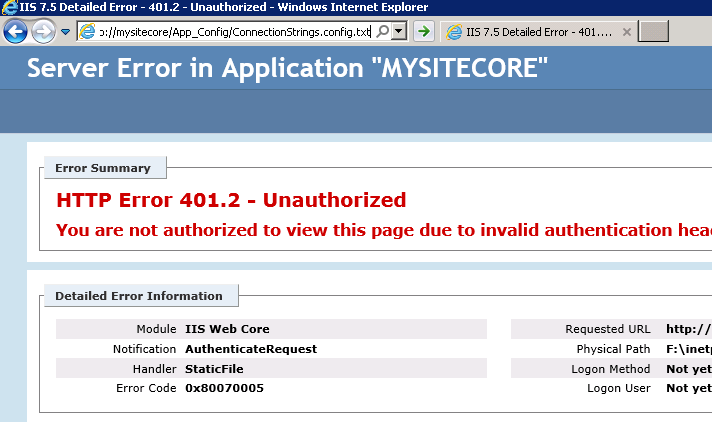
GOSH! Now you’re glad you followed the Sitecore recommendations, aren’t you? You can imagine that your TXT file would be exposed?
Although Sitecore, in its default form, prevents anonymous access to folders by showing the message “The requested document is not found,” this does not guarantee that your content has an extra layer of security.
Now that you’re done, tested, and validated the result for App_Config, you need to repeat steps 1-8 for the folders: /Sitecore/admin, /Sitecore/debug and /Sitecore/Shell/WebService
Still with me? Great! Keep in mind that the steps listed in this post are recommended for all Sitecore instances, regardless of the role they will perform.
That’s it! Thanks for reading and see you in my next post!