
Azure · Sitecore
Sitecore databases – using Azure SQL
Since I have seen the term CLOUD for the first time, I already heard many assumptions from “in love” to “no supporters” people. Everyone has their own perspective, and who wouldn’t smell a rat when their environment is on the line, right?
On this post, I’ll share my experience so far working with Sitecore environments using Azure SQL Server as the database platform.
What’s AZURE SQL?
Assuming you know SQL Server, it’s pretty much the same stuff however it has a seat in cloud and – of course – uses a special version as its back-end.
Azure SQL, according to Kurkekar, S (2016)
“delivers predictable performance, scalability with no downtime, business continuity and data protection—all with near-zero administration”
What about tiers, features, uptime and so on?
In order to best handle with different workloads, Azure SQL has three service tiers known as Basic, Standard and Premium within an uptime SLA of 99.99%. Also, according to Rabeler, C (2016, [1]), “you have the flexibility to choose the level that best meets your workload’s demands.”
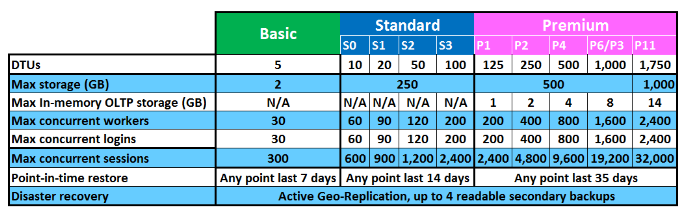
As you can see in the image above, Rabeler, C (2016, [2]) “each Azure SQL tier has one or more performance levels that provide power to run your databases in a predictable manner.” Also according to Rabeler, C (2016, [3]) “the throughput guaranteed for your database rises from Basic through Standard and then to Premium.”
Still with me? Cool!
Back in the old days, by following Sitecore installation guide your biggest concern was to
“run the database on a separate server from the web server”
And at that point this would be your main concern from a database perspective, wouldn’t it? So, you may be asking yourself “Nowadays, do I have other concern if I move to Azure SQL?”
YES! YES! And, one more time yes! And here is the reason
Looking familiar? Well, now it is 🙂
In order to better show you, I’ll share an experience I had to deal with a few months ago.
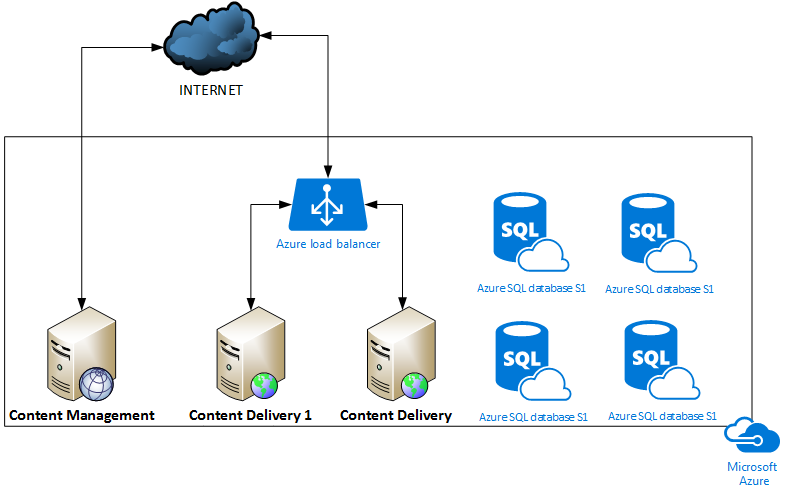
As you can see, I have a Microsoft Azure Subscription and the following resources:
- 1 Server as Content Management
- 2 Servers as Content Delivery
- 4 Databases on Azure SQL Server S1 Standard
- 1 Load Balancer to manage Content Delivery traffic
Everything was going well, until on a sunny day someone said that the website went down!
“Houston, we have a problem!”
And certainly do!
As you may know, inside the chaos everything looks HARDER! Suddenly, it came to my mind my last post
“So, hoping you don’t have a heart attack nor panicking, relax! Then, breathe calmly, put your head to think and follow me!”
Don’t have a heart attack nor panicking…. CHECK! Breathe calmly…. CHECK!
Achievements unlocked! Let’s do it! Ideas back to the right place, moving on….
So, as Content Delivery went down, does Content Management work?
Step 1 – Testing CM node
I went to Content Management and the website loads, and works like a charm! YAY! YAY! Well, “Not so fast buddy!“, before moving forward I would like to highlight two important configurations that Sitecore may have – which was my case.
- Sitecore Scaling Guide: here you will see ways to separate the features of Content Delivery and Content Management such as removing any references to Master database on CD nodes.
- Sitecore Multisites: as the name points out, you will be allowed to configure different sites to the same Sitecore instance
Summarizing, by having both things set, the CM instance was using Master to load its Sitecore instance, which means Sitecore Multisites is doing its job. And, fair enough the site loaded when CDs were down.
Although, at least we know the Master database is working. And based on this information, what would happen if we replace the Master database by the Web database on CM?
As CM is working by using Master database to show its content, why don’t we replace Master Database with Web Database?
Step 2 – Working on ConnectionStrings
- Navigate to Website\App_Data\
- Open ConnectionStrings.config
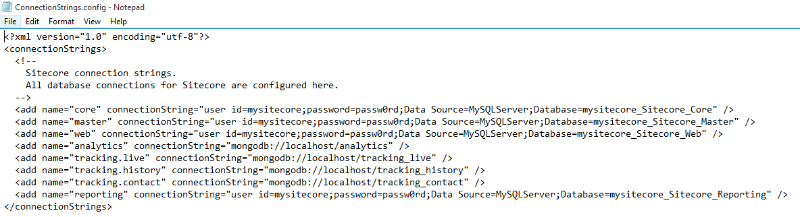
- Switch the item Database=mysitecore_Sitecore_Master entry by Database=mysitecore_Sitecore_Web, then save ConnectionStrings.config

- Open Browser and navigate to CM instance
And didn’t work!
At this point, we know for sure, Web database is the issue! Now, let’s revert CM to its original state.
Also, as we have noticed the issue might be related to Web database, why don’t we leave a recover process running for this database and continue with our troubleshoot?
Step 3 – Check the Event Viewer
For now, forget CM server and let’s focus on CD as the problem is the Web database.
Was the problem logged somewhere? Let’s check
Quick note: If you remember, in a previous post I’ve showed you Sitecore recommendations, so in my scenario these recommendations have been followed.
Navigate to Sitecore instance path
Then, open Data\logs folder
Check the log files and verify if there’s anything pointing to a database failure
Nothing! I’ve found nothing! Well, last but not least, let’s check Event Viewer
Quick note 2: I’m assuming you are using Windows 2012, ok?
- Click, back in old days, Start button

- You’ll see the Metro User Interface
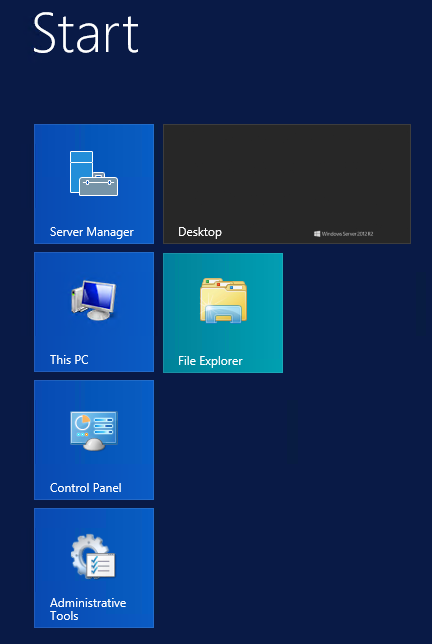
- Then start typing Event Viewer – notice a Search field shows up and you can tap Event Viewer
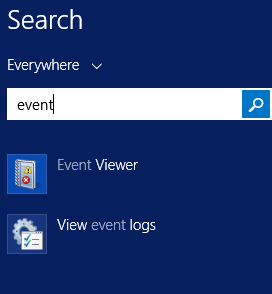
Event Viewer window, on the left navigate panel expand Windows Logs and click Application
Then, let’s check what we have there
Hey! Look what I found
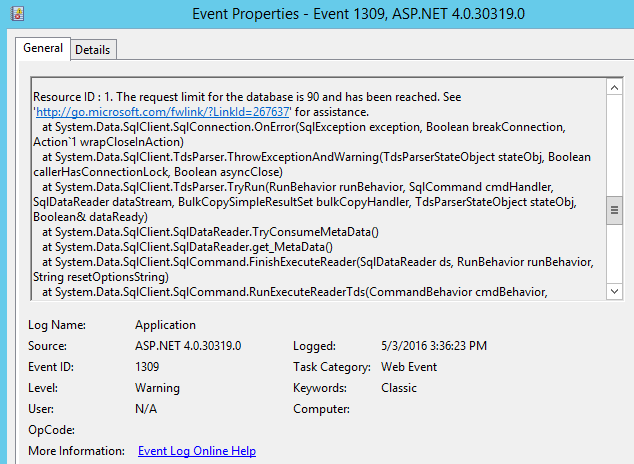
“The request limit for the database is 90 and has been reached”
At that time I wasn’t aware a limit exists and it has been reached!!!! However, now we know, right?
As we are running Azure SQL you may be asking yourself “Well, why don’t you change the service tier from S1 to S2 for example?“
Good thinking, seems that you are still with me 🙂
And, I have done this, so once the process completed the website was back up to live! YAY! YAY!
Another issue solved and we saved the day!
Not so fast buddy!
Alright, so we have changed from S1 to S2 and what we will do if happens again? Move forward to S3? And keep this game until it doesn’t happen again? NO!
The idea is to follow Sitecore installation guide, and as you know I have encouraged you to use it and will keep doing it. And as couldn’t be different, Sitecore also has a recommendation for Azure SQL, and it wasn’t covered on this enviroment.
“It is recommended to use at least the Standard S3 Azure SQL tier on any production systems”
Oh gosh! And we were using Standard S1!!!!
Still with me? Cool! So, keep in mind that it is very important to get Sitecore recommendations, especially for the “cloud world”!
That’s it! Thanks for reading and I’ll see you on my next post!