
Sitecore
Sitecore Installation – tips and tricks #2
You probably already know that Sitecore needs a file named license.xml inside the Data folder, otherwise your installation will not be initialized in any way!
However, especially when you are installing a production environment and following Sitecore’s recommended practices, which says:
“After installing Sitecore, you can increase security if you relocate the following folders outside the /Website folder: /data and /indexes”
Therefore, when performing the above procedure, you might encounter issues similar to the one in the image below
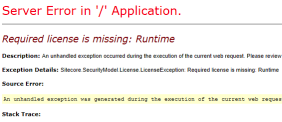
Unlike other versions where the variable dataFolder was in the web.config, Sitecore version 8.1 moved dataFolder to the file App_Config\Sitecore.config. However, in accordance with Sitecore’s recommendations [p. 13]
“You should use files inside the App_Config/Include folder instead of modifying them directly in web.config”
And I would say, let’s apply the same rules to the Sitecore.config since both files contain many instructions for Sitecore to function correctly and which can save headaches in the future simply by following the recommendations.
So, based on this idea, why don’t we take a look inside the App_Config\Include folder?
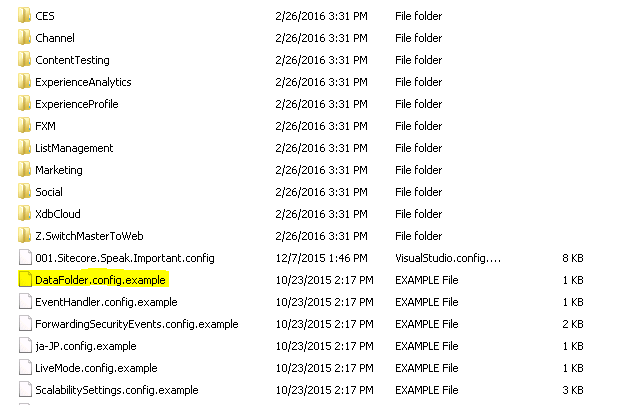
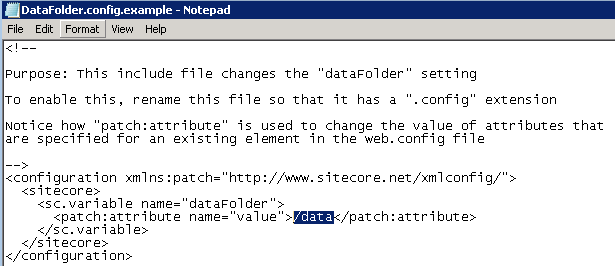
Well, it seems there is a file named DataFolder.config.example… what will its contents be?
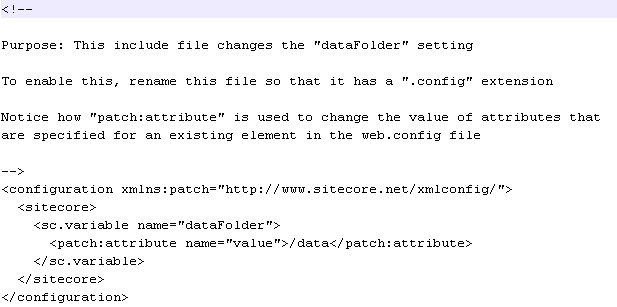
Very similar to what we used to see in the web.config and in Sitecore.config, right? And, as you can also see inside the content, it tells us
“rename this file so that it has a .config extension”
“rename this files so that it has a .config extension”
GREAT!!!!
- Inside the folder App_Config\Include, locate the file DataFolder.config.example
- Select it, right-click and choose Rename (Rename)
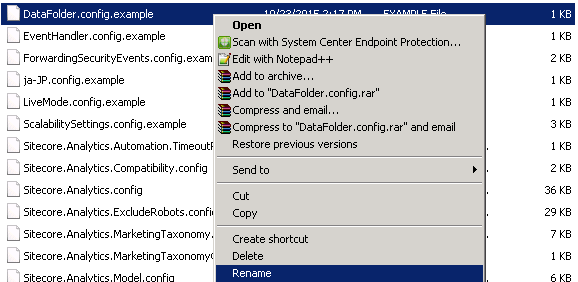
- Remove .example and the file will be DataFolder.config only
So far nothing changed, because the dataFolder variable still points to /data and Sitecore still cannot locate the license.xml file
Ladies and gentlemen, follow me and let’s solve this problem!
- Open Notepad and change to All Files (*.*) in the bottom-right corner

- Navigate to the folder Sitecore\Website\App_Config\Include, select the DataFolder.config file and click Open
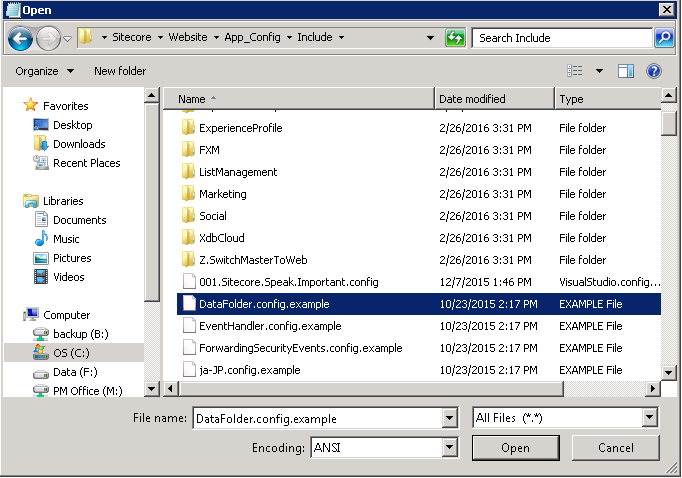
- Find the old value /data
- Replace /data with the new path C:\inetpub\wwwroot\Sitecore\Data\
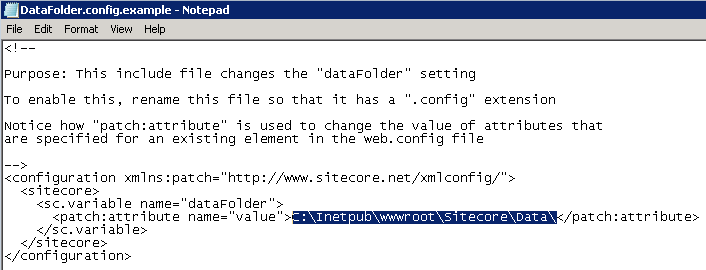
- Save the DataFolder.config file so the modification is applied
Once everything is in place and modified, let’s check how things are with our Sitecore installation….

… nothing more fair, IT WORKED!
Nice! Thanks for reading and I’ll see you in my next post!