
Azure
Azure: Remove Unused Disks
The article today will address Remove Unused Disks and is part of the series of posts that help save money when using resources in Azure.
I once heard, and I have used since then, this analogy: using cloud resources is like using electricity—the more you use, the more expensive it becomes. However, you can also save money if you apply to the cloud what you currently do with electricity.
Turn off what is in use!
Storage Types
Azure offers different storage types for different purposes, and to store virtual machine disks you will find managed disks and unmanaged disks.
Although unmanaged disks are still supported by Azure, the recommendation is to use managed disks, as they provide high fault tolerance, higher availability, and scalability.
How do I get disks that are not in use?
By default, when you delete a virtual machine, its disks are not deleted. According to Microsoft, this helps prevent data loss due to accidental VM deletion.
How are unused disks billed?
Unused disks are also billed because you are using storage space. To avoid surprises, you should be aware of these costs.
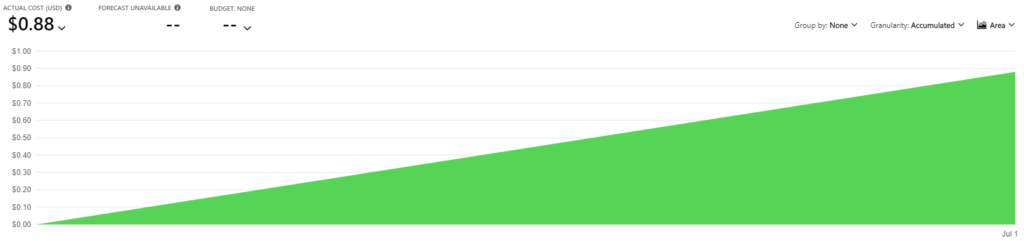
The image above shows the cost of one day for a managed Standard HDD disk at US$0.88/day (~US$26.4/month).
IMPORTANT: Costs can vary depending on the storage type, storage tier, and storage account type (for unmanaged disks)
When should I delete unused disks?
Since most of these disks are the result of deleted virtual machines, and Microsoft says this helps prevent data loss, I recommend identifying such disks and determining whether you still need them, because deletion is permanent and cannot be undone.
How to identify unused disks?
You can check via the Azure Portal or using PowerShell, and if you’re unsure about Managed Disks and Unmanaged Disks, you can verify both.
Azure Portal
Powershell
Powershell Managed Disks
# Source https://docs.microsoft.com/en-us/azure/virtual-machines/windows/find-unattached-disks#managed-disks-find-and-delete-unattached-disks
# Set deleteUnattachedDisks=1 if you want to delete unattached Managed Disks
# Set deleteUnattachedDisks=0 if you want to see the Id of the unattached Managed Disks
$deleteUnattachedDisks=0
$managedDisks = Get-AzDisk
foreach ($md in $managedDisks) {
    # ManagedBy property stores the Id of the VM to which Managed Disk is attached to
    # If ManagedBy property is $null then it means that the Managed Disk is not attached to a VM
    if($md.ManagedBy -eq $null){
        if($deleteUnattachedDisks -eq 1){
            Write-Host "Deleting unattached Managed Disk with Id: $($md.Id)"
            $md | Remove-AzDisk -Force
            Write-Host "Deleted unattached Managed Disk with Id: $($md.Id) "
        }else{
            $md.Id
        }
    }
 }
PowerShell Unmanaged Disks
# Source https://docs.microsoft.com/en-us/azure/virtual-machines/windows/find-unattached-disks#unmanaged-disks-find-and-delete-unattached-disks
# Set deleteUnattachedVHDs=$true if you want to delete unattached VHDs
# Set deleteUnattachedVHDs=$false if you want to see the Uri of the unattached VHDs
$deleteUnattachedVHDs=$false
$storageAccounts = Get-AzStorageAccount
foreach($storageAccount in $storageAccounts){
    $storageKey = (Get-AzStorageAccountKey -ResourceGroupName $storageAccount.ResourceGroupName -Name $storageAccount.StorageAccountName)[0].Value
    $context = New-AzStorageContext -StorageAccountName $storageAccount.StorageAccountName -StorageAccountKey $storageKey
    $containers = Get-AzStorageContainer -Context $context
    foreach($container in $containers){
        $blobs = Get-AzStorageBlob -Container $container.Name -Context $context
        #Fetch all the Page blobs with extension .vhd as only Page blobs can be attached as disk to Azure VMs
        $blobs | Where-Object {$_.BlobType -eq 'PageBlob' -and $_.Name.EndsWith('.vhd')} | ForEach-Object {
            #If a Page blob is not attached as disk then LeaseStatus will be unlocked
            if($_.ICloudBlob.Properties.LeaseStatus -eq 'Unlocked'){
                    if($deleteUnattachedVHDs){
                        Write-Host "Deleting unattached VHD with Uri: $($_.ICloudBlob.Uri.AbsoluteUri)"
                        $_ | Remove-AzStorageBlob -Force
                        Write-Host "Deleted unattached VHD with Uri: $($_.ICloudBlob.Uri.AbsoluteUri)"
                    }
                    else{
                        $_.ICloudBlob.Uri.AbsoluteUri
                    }
            }
        }
    }
}